background-decoration

Help Center

Back to Accounts & Billing Articles
Accounts & Billing

How Do I Manage Service Notifications and Secondary Users on My Account?

Managing your service notifications helps you stay updated with important account alerts like outages, maintenance, and billing updates. With eBill, you can easily manage how and where these notifications are delivered.

  • Importance of Updated Contact Information

    Accurate contact information ensures you receive timely alerts about planned maintenance, service interruptions, billing updates, or other important account notices. With our updated notification process, you will always know what is happening with your service.

  • Notification Contact Limits

    Your Twin Valley account supports the following notification contacts:

    • 1 email address for notifications
    • Up to 2 mobile numbers for text alerts (your primary number plus one additional mobile line)

    If more people need to receive updates, such as family members, business partners, or property staff, you can add them as secondary users.

  • About Secondary Users

    Secondary users are ideal for anyone who needs access to account updates or service notifications. They can:

    • Receive outage and maintenance alerts
    • Make changes to the account, depending on the permissions you choose

    Each secondary user profile includes:

    • 1 email address
    • Up to 2 phone numbers for notifications
  • How to Add a Secondary User

    Managing your notifications and user access is simple through eBill. You can use the website or the mobile app.

    Add a Secondary User on the Web (eBill)

    1. Sign in to eBill.
    2. Select Settings.
    3. Click the green Add New Contact button.

    Sign in to eBill to add a user.


    Add a Secondary User in the Mobile App

    1. Sign in to the eBill mobile app.
    2. Tap Contacts.
    3. Tap the green + icon.

    Open the Twin Valley eBill app on your phone, or download it here:

  • Enable Notifications for Each User

    For each contact or secondary user, make sure notification settings are turned on:
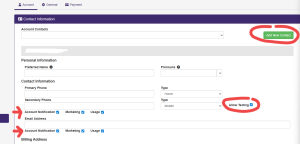
    • Select Allow Texting next to your mobile number
    • Select Account Notification for any phone numbers and emails that should receive alerts

    Screenshot of the eBill “Contact Information” page showing the Account Contacts dropdown with an “Add New Contact” button highlighted, plus notification checkboxes (Account Notification/Marketing/Usage) and an “Allow Texting” option for maintenance and outage alerts.

  • Frequently Asked Questions

    Do I need to call Customer Service to add a secondary user?
    No. You can update contacts and add users on your own through eBill on the web or in the mobile app.

    How many contacts can receive notifications?
    Each account supports one primary email and two phone numbers. Secondary users can also receive alerts and manage their own notification preferences.

    Can secondary users make changes to my account?
    Yes. Secondary users can make updates depending on the access level you assign.

Need Additional Help?

If you prefer assistance, our Customer Service team can help you review your notification settings or add users.

Call us at 800.515.3311.

Call Twin Valley Support

If you have not found the answer to your question or need additional assistance, the Twin Valley Customer Support team is here to help!

Contact Customer Support